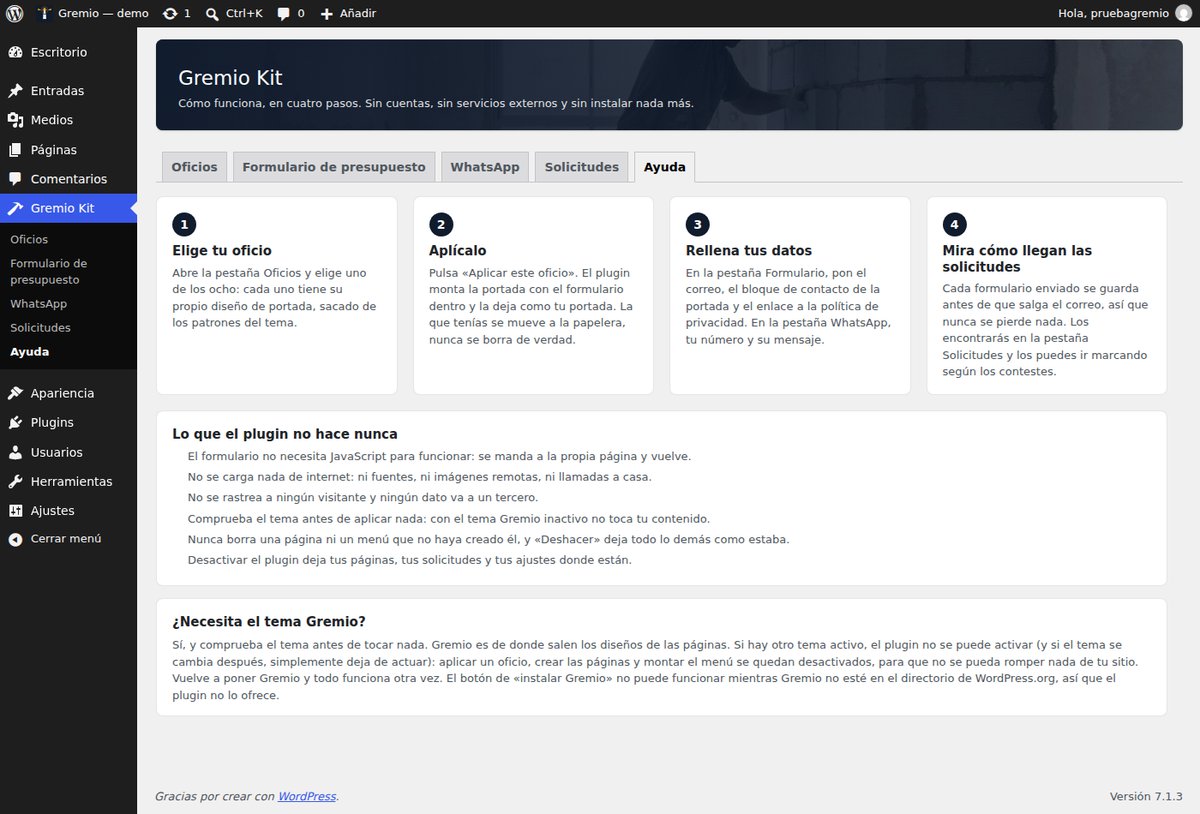
The steps
Gremio Kit is the companion plugin for the Gremio theme: they go together. If you follow the steps in this order, there is no way to lose anything.
1. First of all: the Gremio theme has to be active
Gremio Kit brings no designs of its own: it takes them from the Gremio theme. So the first thing is to have the Gremio theme active (Appearance → Themes). It is free and you download it from its own page.
That is also why the plugin checks the theme before touching anything. If you activate it without Gremio, it deactivates itself and tells you why; if you change theme later, it stops acting until Gremio is back. It is not a whim: applying a trade moves your previous home page to the trash and creates pages, so without the theme's designs there is nothing to build. The plugin says so itself on its Help screen:

2. Install and activate the plugin
Download the package from the plugin page and, in your WordPress, go to
Plugins → Add New → Upload Plugin. Pick the zip gremio-kit-0.4.1.zip, press
Install Now and then Activate.
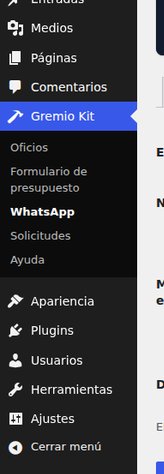
When you activate it, a new menu appears in the dashboard, Gremio Kit, with its five screens: Trades, Quote form, WhatsApp, Requests and Help. The whole plugin lives there:
3. Pick your trade and press “Apply this trade”
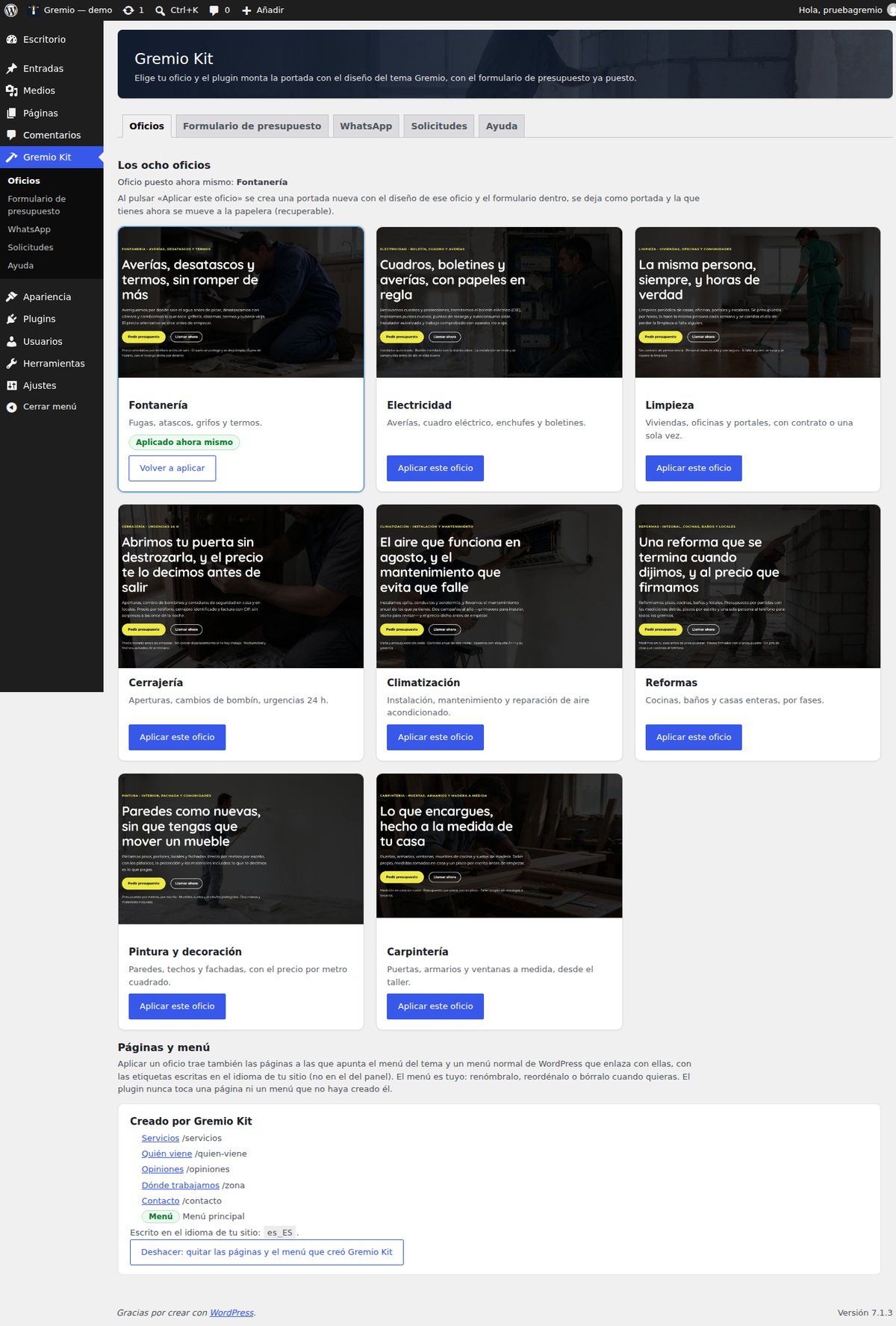
Go to Gremio Kit → Trades. You will find the eight trades with their picture (plumbing, electrical work, cleaning, locksmithing, heating and air conditioning, renovation, painting and decorating, and carpentry). Find yours and press its Apply this trade button. The one in use right now is marked in green.
4. See what it created (and how to undo it)
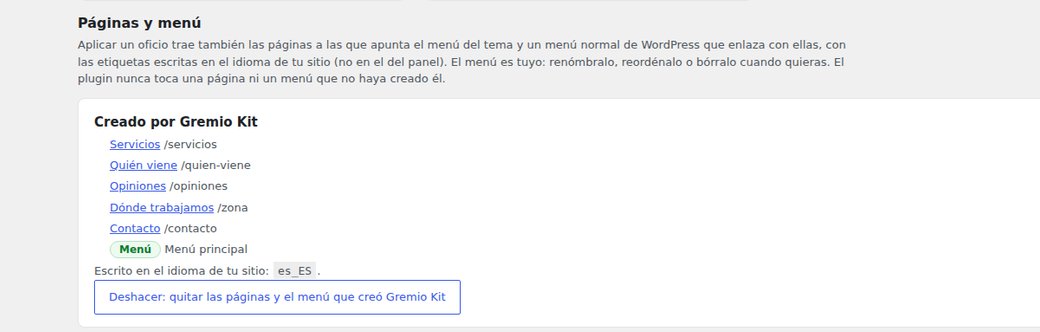
When you apply a trade, the plugin builds the home page with that trade's design and creates the pages the theme menu needs: Services, Who comes, Reviews, Area and Contact. It lists them with their addresses in the same block, so you always know what it made and what was there before.
Under that list you have the Undo: remove the pages and the menu Gremio Kit created button. If you do not like the result, press it and everything goes back to how it was: those pages and that menu are removed and your previous home page is restored. It never deletes a page or a menu it did not create.
5. The menu, with the labels in the language of your website
The plugin builds a normal WordPress menu (Appearance → Menus) linking the home page to those pages. The labels are written in the language of your site, not in the language of the admin panel. Look at the screenshot: a site in Spanish, and the menu follows the language of the site even though the panel is in Spanish.
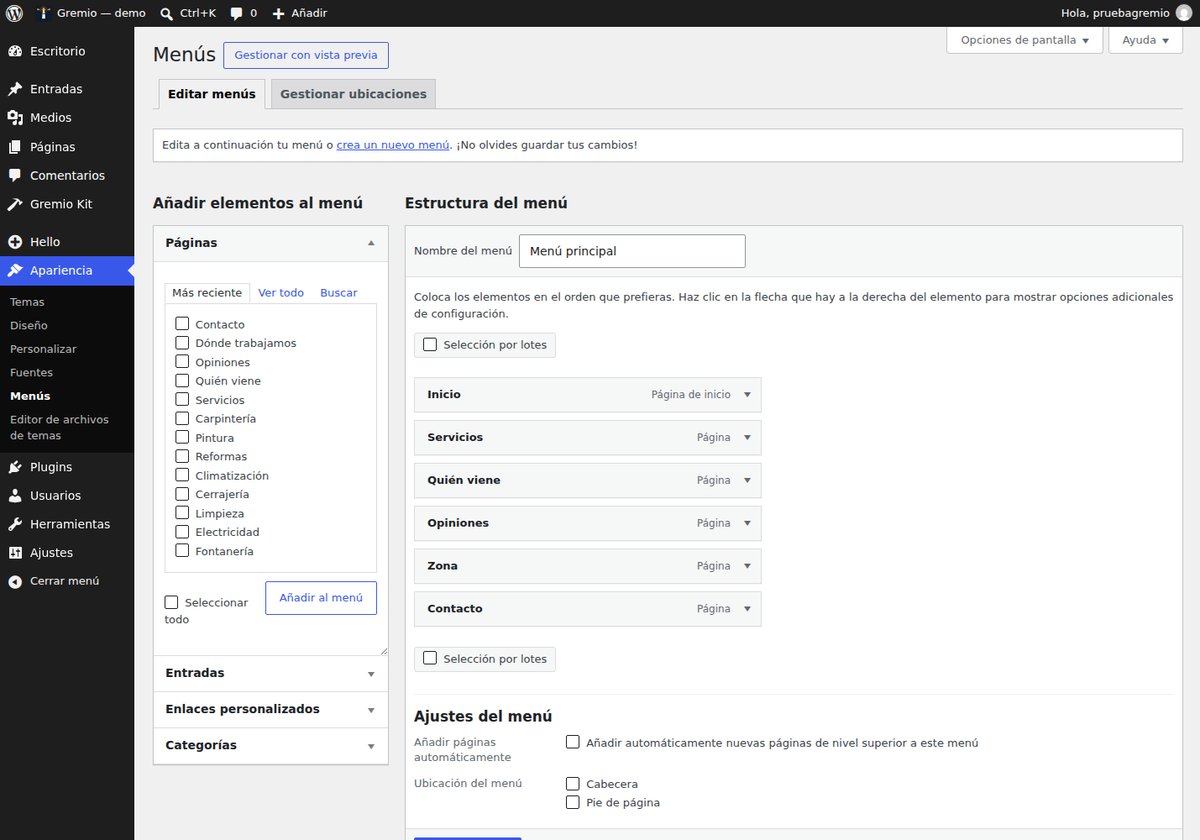
The menu is yours: rename it, reorder it or delete it whenever you like. The labels come out in the language of your site.
6. The quote form: email, subject, privacy and contact details
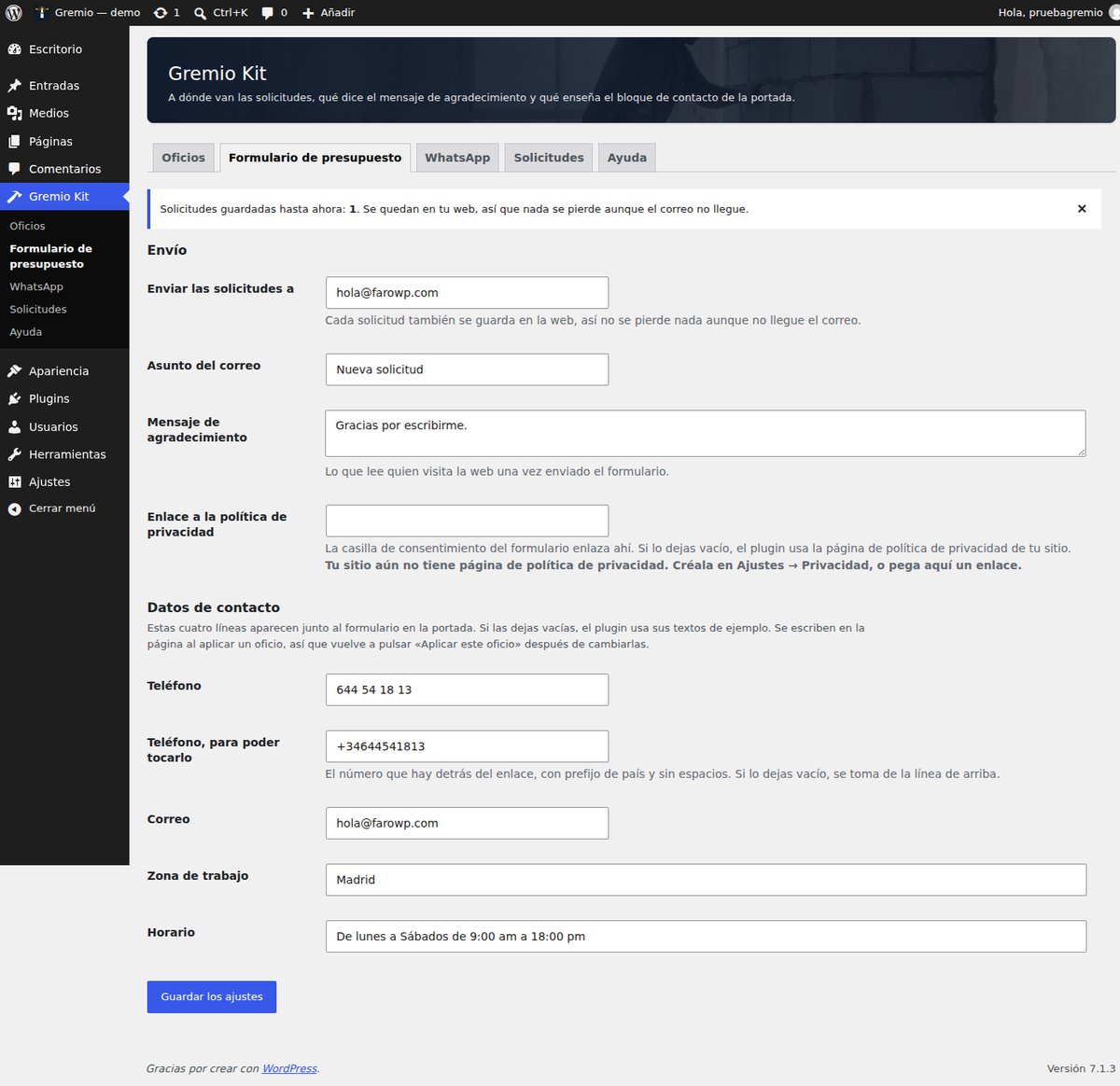
The form is already placed inside the home page, in the contact band (there is nothing else to install). What is worth filling in is Gremio Kit → Quote form:
- Send requests to: your email address. Every request is also saved on your website, so nothing is lost even if the email fails.
- Email subject: whatever you want to see in your inbox.
- Thank-you message: what the visitor reads after sending the form.
- Privacy policy link: leave it empty and the plugin uses your site's privacy policy page (Settings → Privacy).
- Contact details: phone, phone you can tap, email, work area and opening hours. These are the four details shown next to the form on the home page.
The contact details are written into the page when you apply a trade, so if you change them afterwards, press Apply this trade again to refresh them on the home page. And do not forget to Save changes.
7. The WhatsApp button
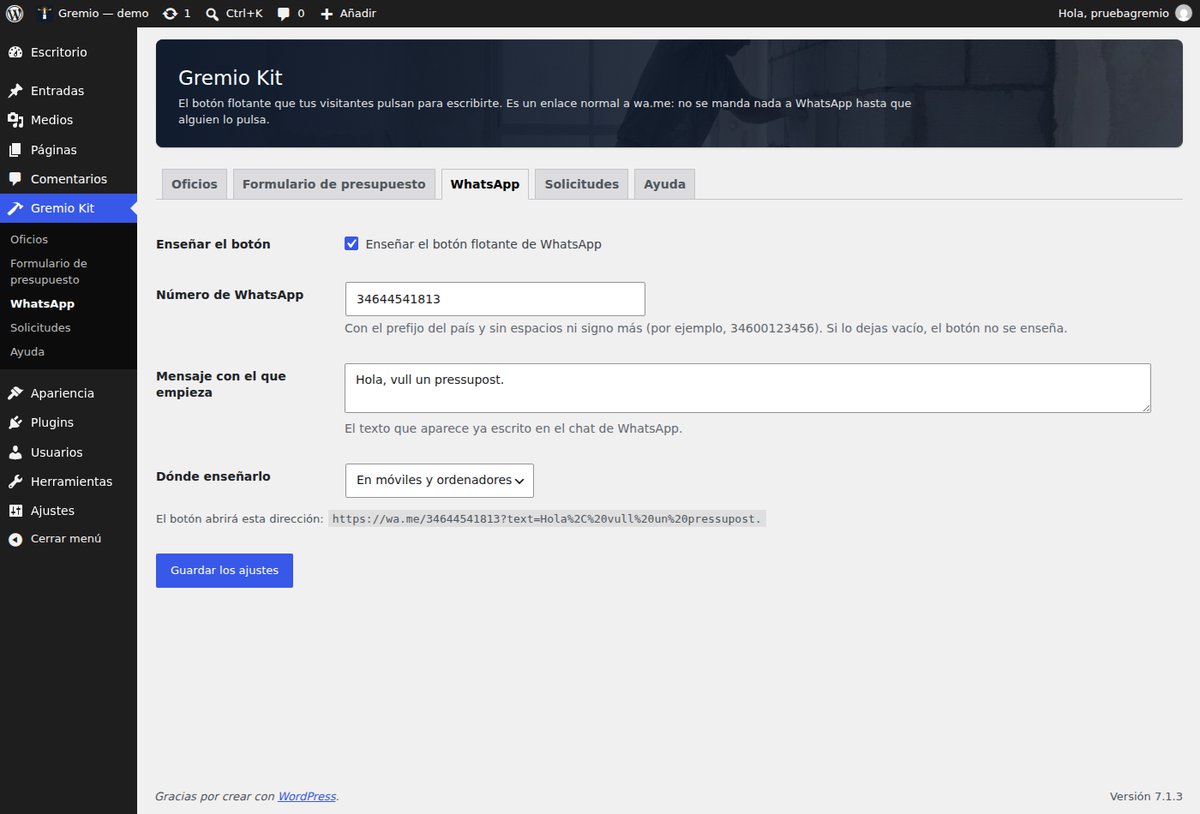
In Gremio Kit → WhatsApp you tick whether you want the floating button, enter your number (with the country code and no spaces) and write the message the chat starts with. You can choose whether it shows on phones only, on computers only, or on both. Leave the number empty and the button is not shown.
The button is a plain link to wa.me: WhatsApp is not called, and nobody else is, until someone
taps it.
8. The requests and the answered tick
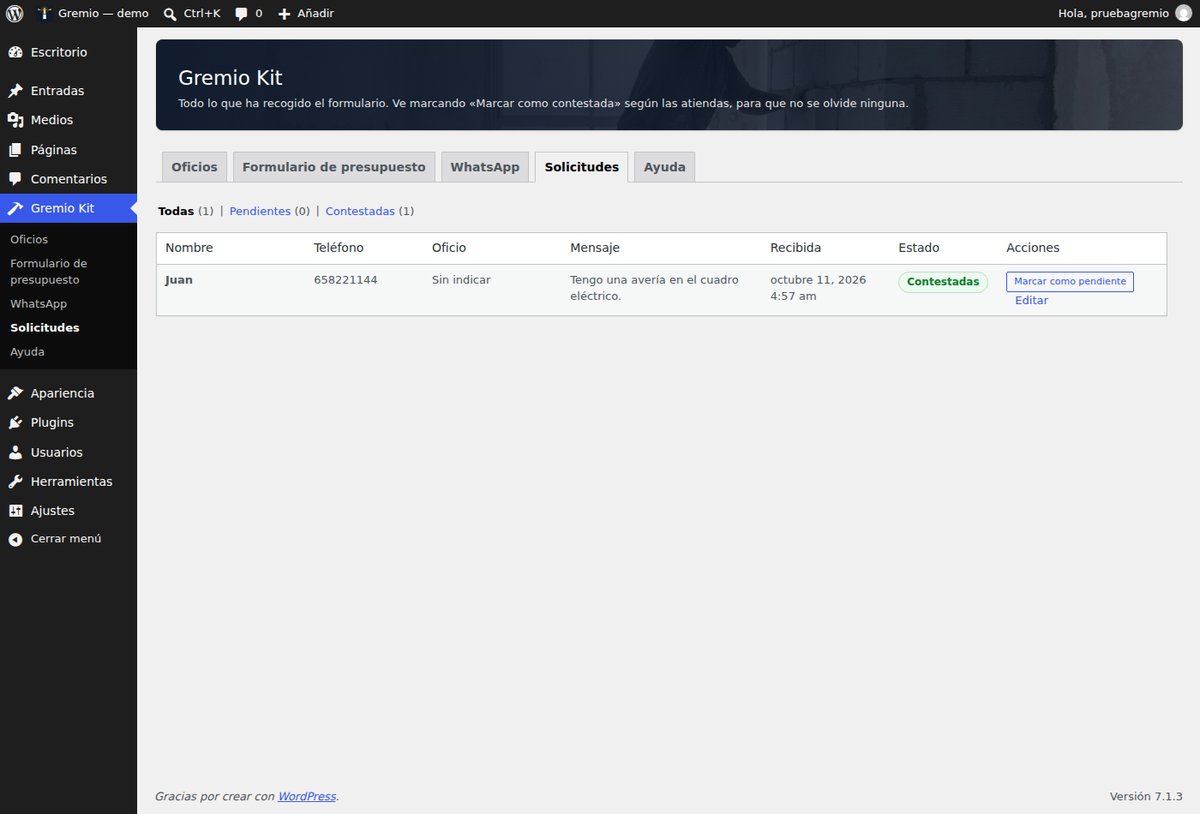
Every time someone fills in the form, the request is saved on your website and an email reaches you. In Gremio Kit → Requests you have them all: name, phone, trade, message and when it arrived. As you deal with them, tick them with Mark as answered, and the number still pending stays at the top so you do not forget any.
These requests never show on the site and nobody can reach them from outside.
9. The help, inside the plugin itself
If you get lost, Gremio Kit → Help sums up the four steps, tells you what the plugin never does, and reminds you that it needs the Gremio theme.