The four steps
1. Before you start: the language
The theme carries its texts and its names in English (wordpress.org requires it) and the Spanish translation inside the theme itself. Where you set it: Dashboard → Settings → General → Site Language. With the site in English everything appears in English; with the site in Spanish — Spanish (Spain) — everything appears in Spanish (the pattern names, the style names and the demo texts).
2. The colour: the style
Appearance → Editor → Styles → Browse styles. There are eight variations, one per trade: Plumbing, Electrical, Cleaning, Locksmithing, Heating and Air Conditioning, Renovation, Painting and Decorating, Carpentry. Choose yours and press Save. It changes the colour of the whole site (the buttons, the photo bands, the footer) without touching a single page.
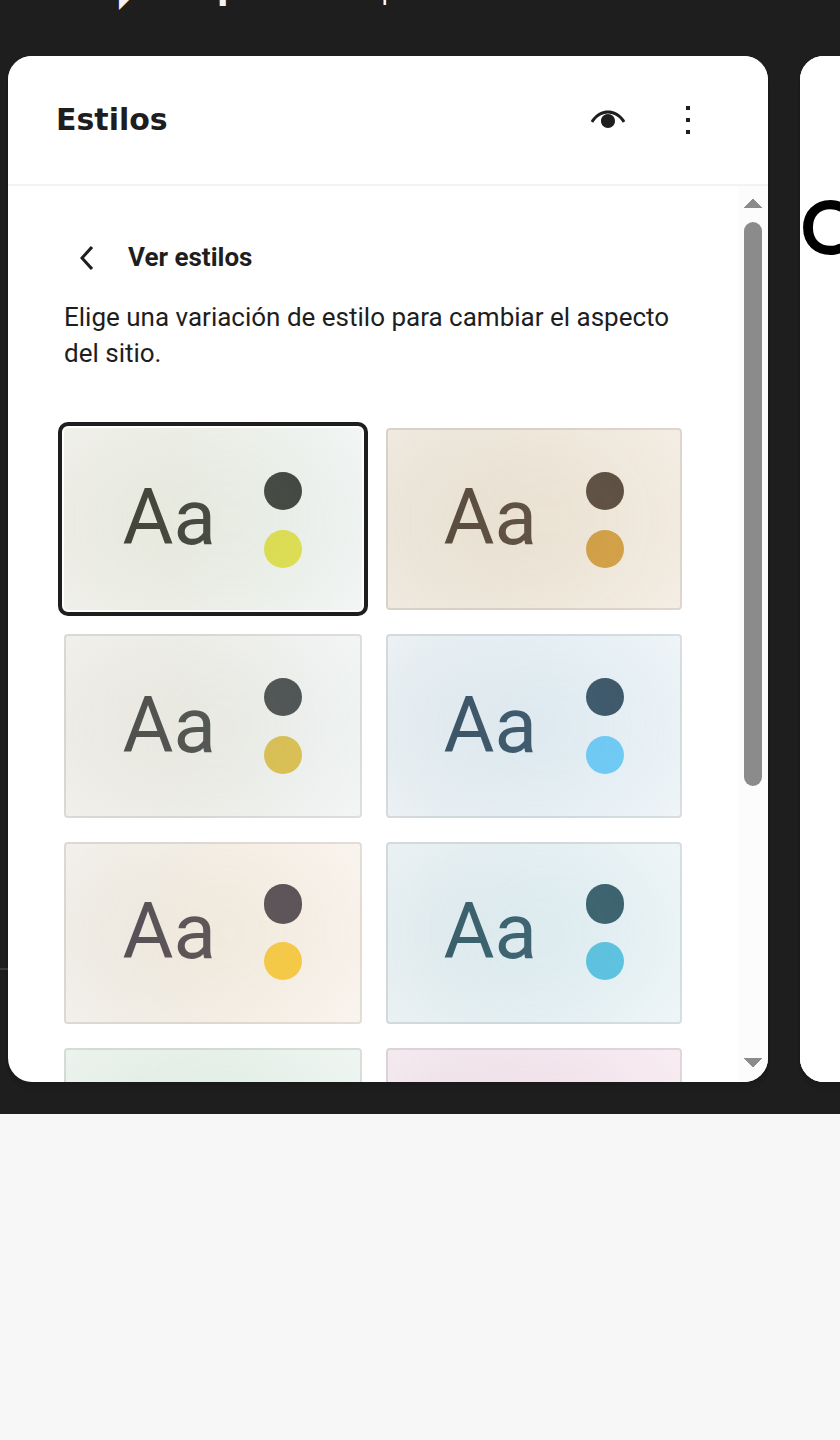
3. The home page: careful, it is a PAGE, not a template
In the editor, the demo's home page appears as a page (you will see “Template: Pages” and the “Move to trash” button). That is why you cannot change it from “Templates”: it is not there.
The recommended route (clean, with nothing broken to fight with):
- Pages → Add new (give it a title, for example “Home”).
- In the editor: the + → Patterns tab → search Home page → pick the one for your trade: Home page — Plumbing, — Electrical Work, — Cleaning, — Locksmithing, — Heating and Air Conditioning, — Renovation, — Painting and Decorating, — Carpentry (or the generic Home page — Trade).
- Publish.
- Settings → Reading → “A static page” → Homepage: the one you just created → Save. Otherwise the site shows the blog.
- Delete the old page (Pages → the old one → Trash) if you do not want it.
You can also do it on the page you already have, replacing the section. But starting a new page means there is nothing broken to fight with.
4. The words and the photos
Click any text and type over it; the photos are changed from their own block. The trade's other pieces (services, prices, reviews, contact) are added the same way: + → Patterns → search Services or Prices (or the trade's name). And do not forget the phone and the email: they are in the header and in the footer, and they are the details people see most.
The four traps (this is what made the first version fail)
- Two buttons share a similar name. If pressing “Replace” brings up the media library, that one belongs to the photo, not to the trade. The safe way to change the whole section is + → Patterns → the search box.
- If you get a “block contains unexpected or invalid content” warning, do not press “Attempt recovery”: it unlocks the pattern and leaves it half-done. Delete the section and add your trade's.
- The style and the home page are two different things. If you change only the style, you get your trade's colours with the old trade's texts and photos.
- The photos and the reviews are demo ones (the faces are generated: they are not anyone's clients). Change them before showing the site.
This is how each trade looks
The eight home pages, exactly as they come in the theme. Click any of them to see its page:
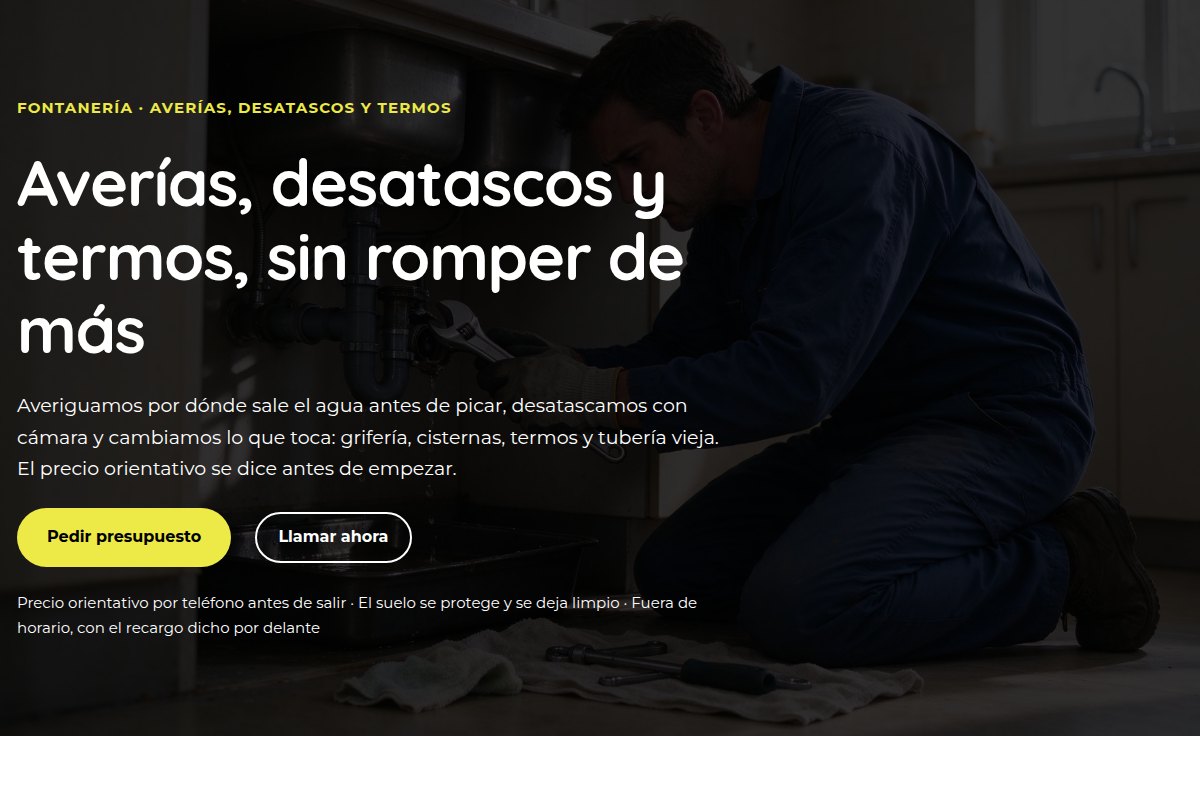 PlumbingSee the page
 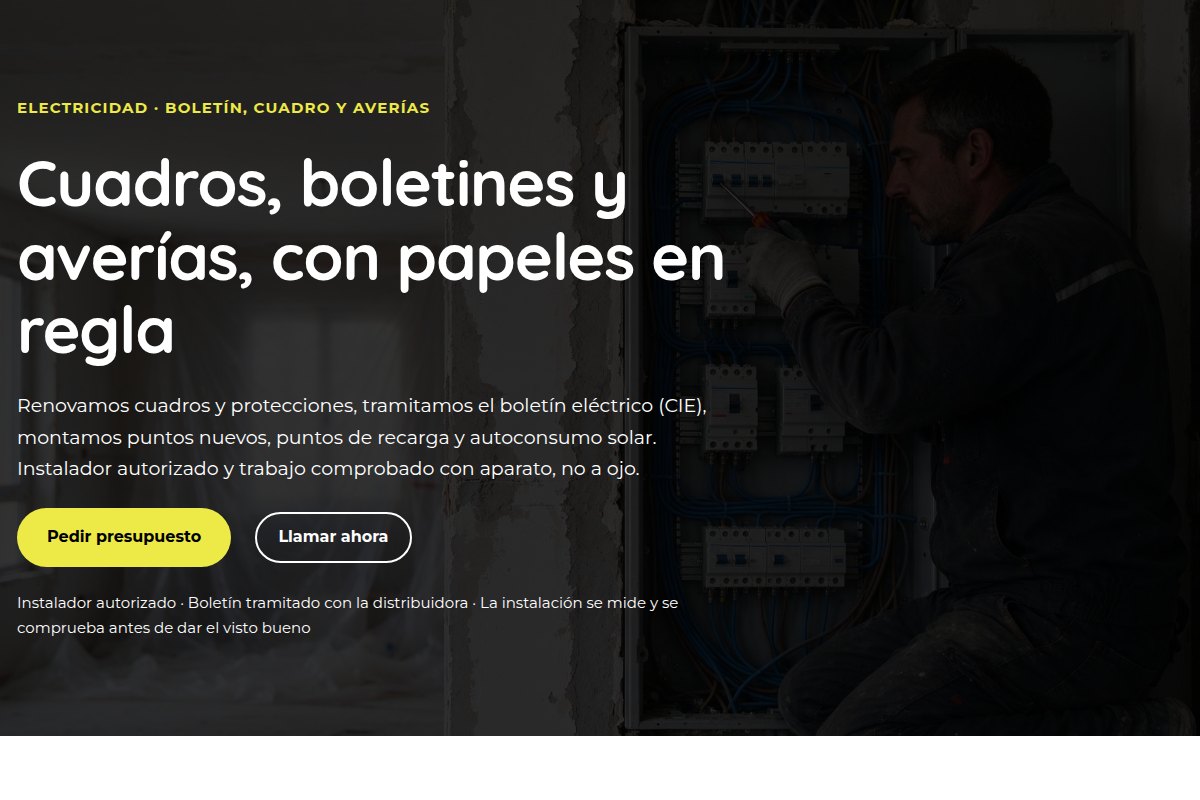 Electrical workSee the page
 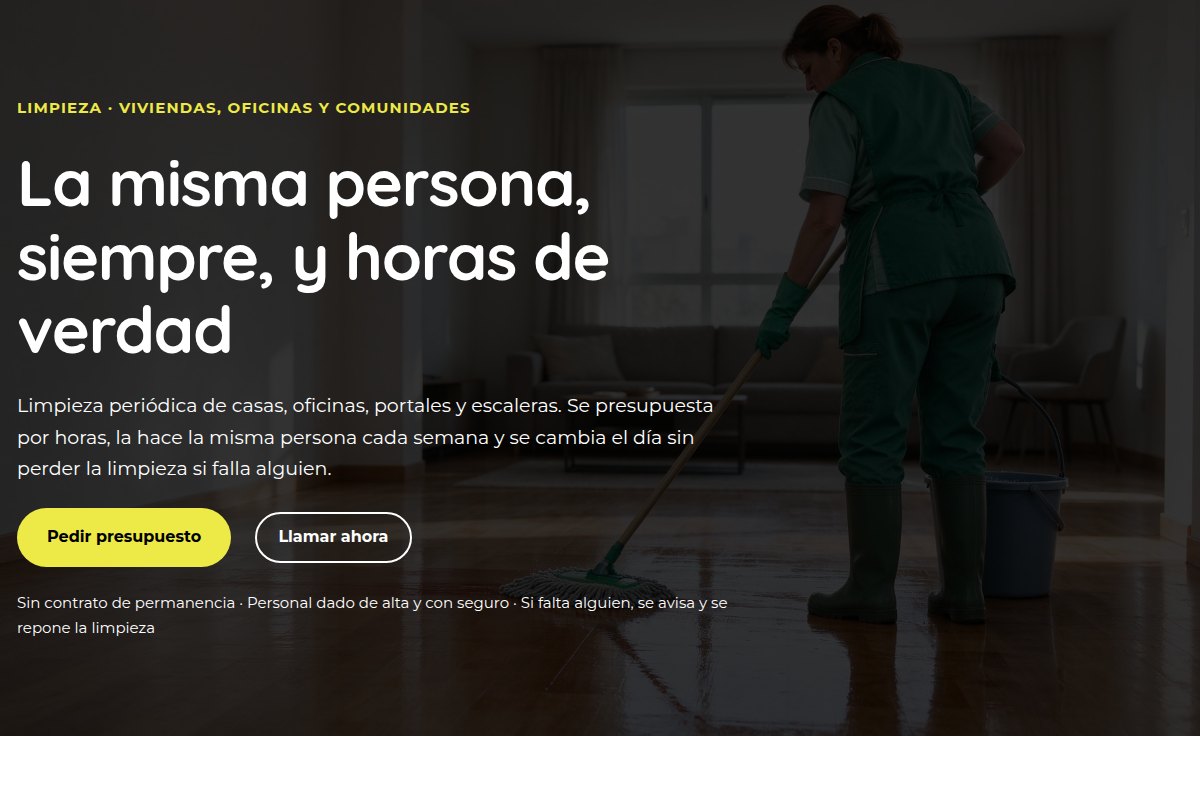 CleaningSee the page
 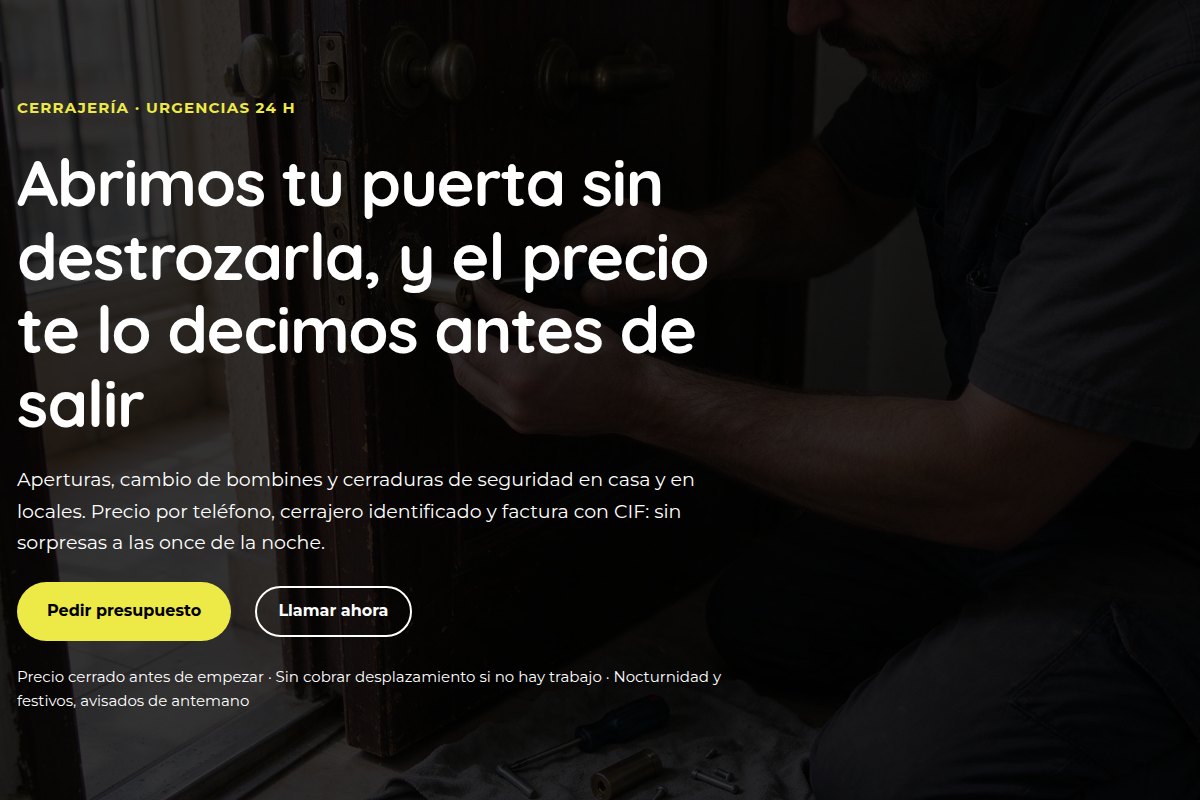 LocksmithingSee the page
 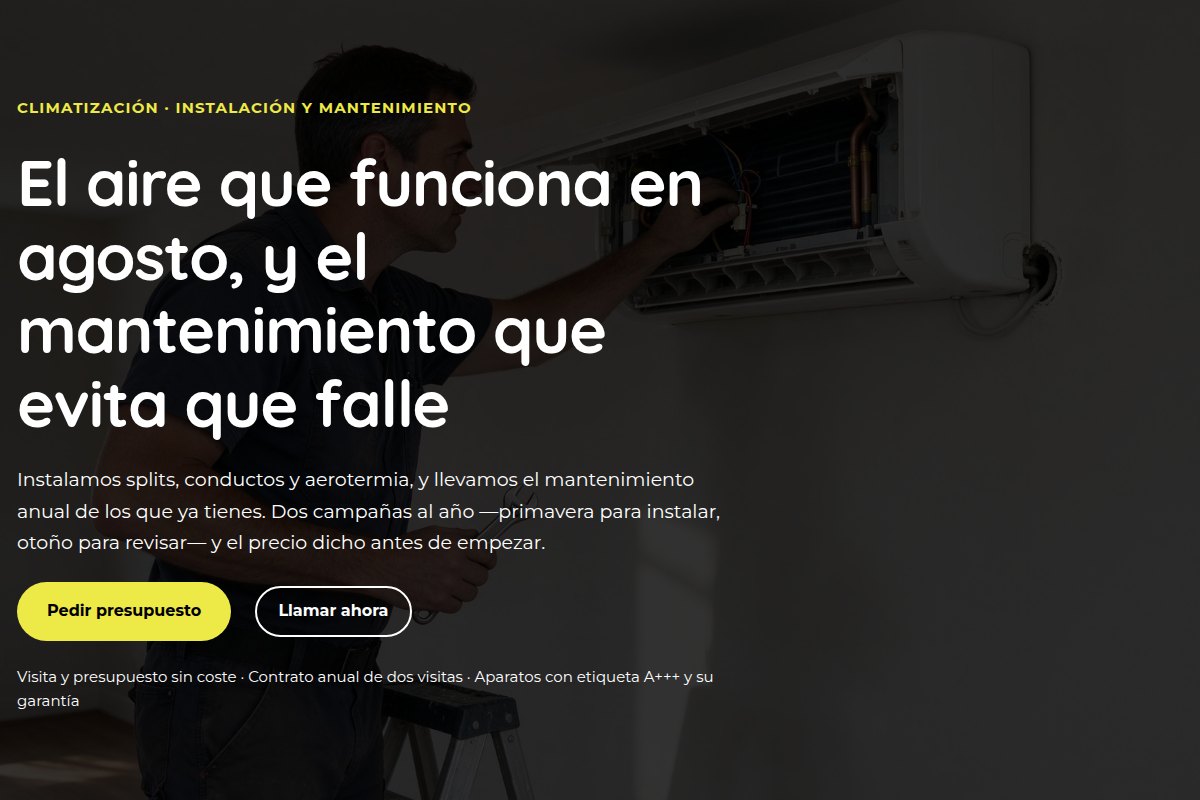 Heating and air conditioningSee the page
 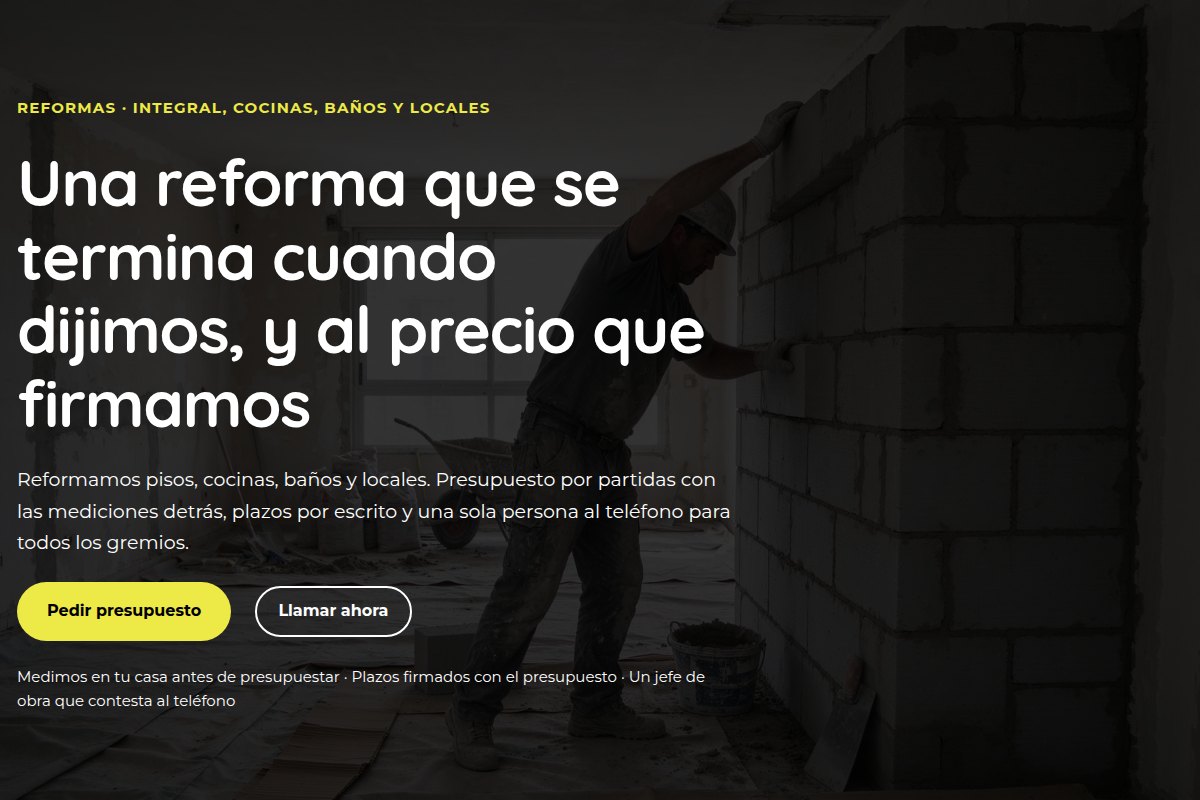 RenovationSee the page
 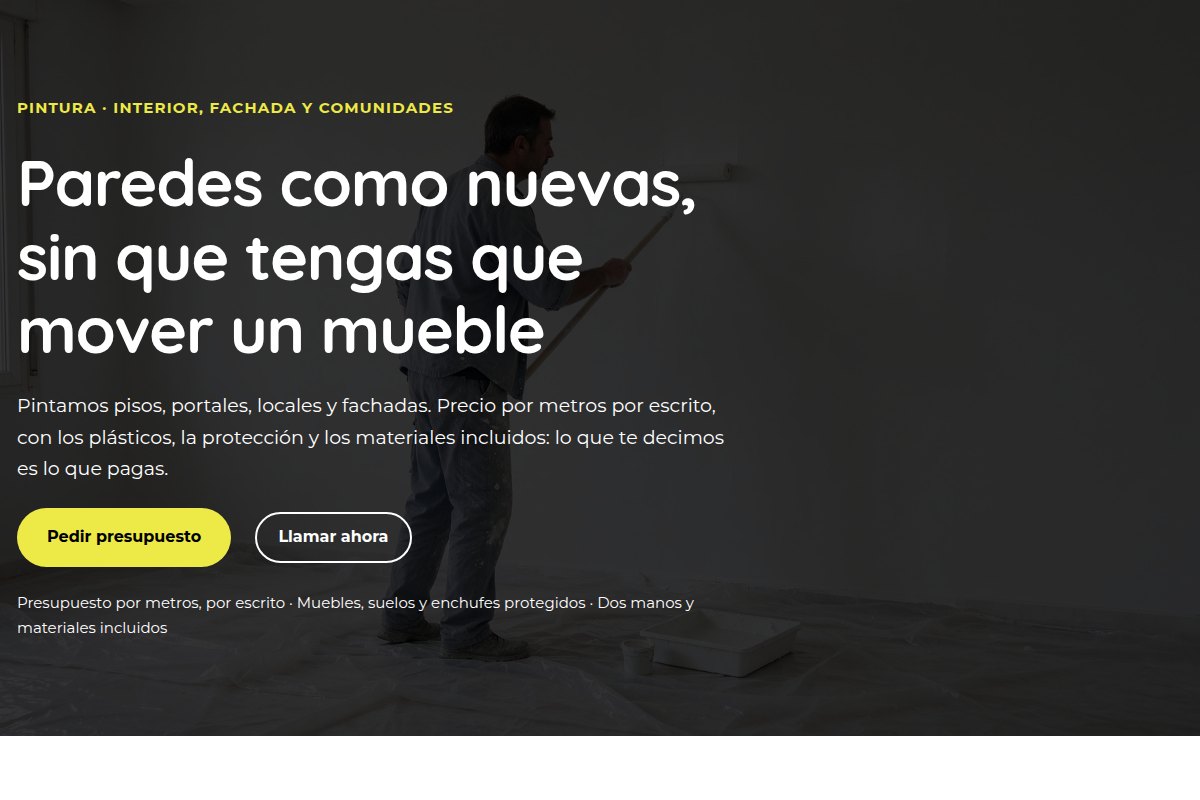 Painting and decoratingSee the page
 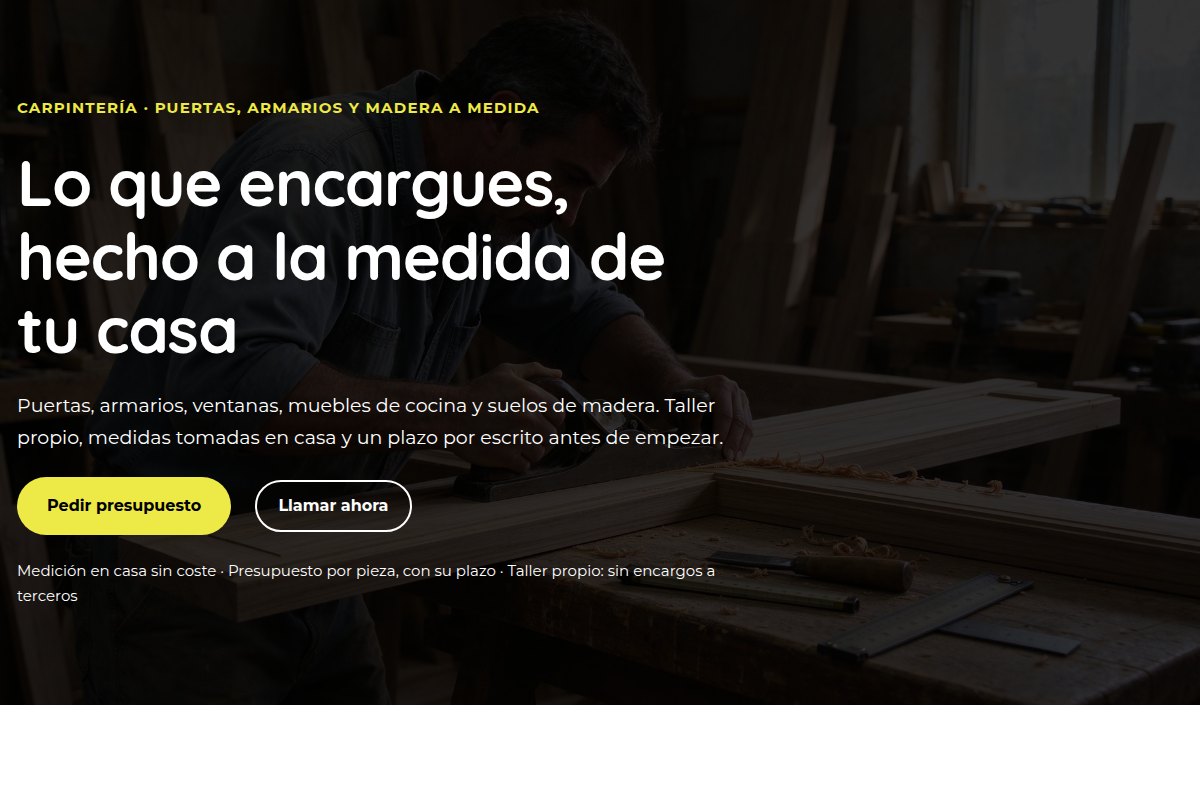 CarpentrySee the page
And the trades kit, what will it do?
It is on its way and it will do these steps at once: choose your trade, set its pages and leave the quote form working. Until then, this is the way: it is short and it breaks nothing.

