The steps
Andamio Kit is the companion plugin of the Andamio theme: the two go together. Do the steps in this order and there is no way to lose anything.
1. First of all: the Andamio theme has to be active
Andamio Kit brings no designs of its own: it takes them from the Andamio theme. So the first thing is to have Andamio active (Appearance → Themes). It is free and you download it from its page.
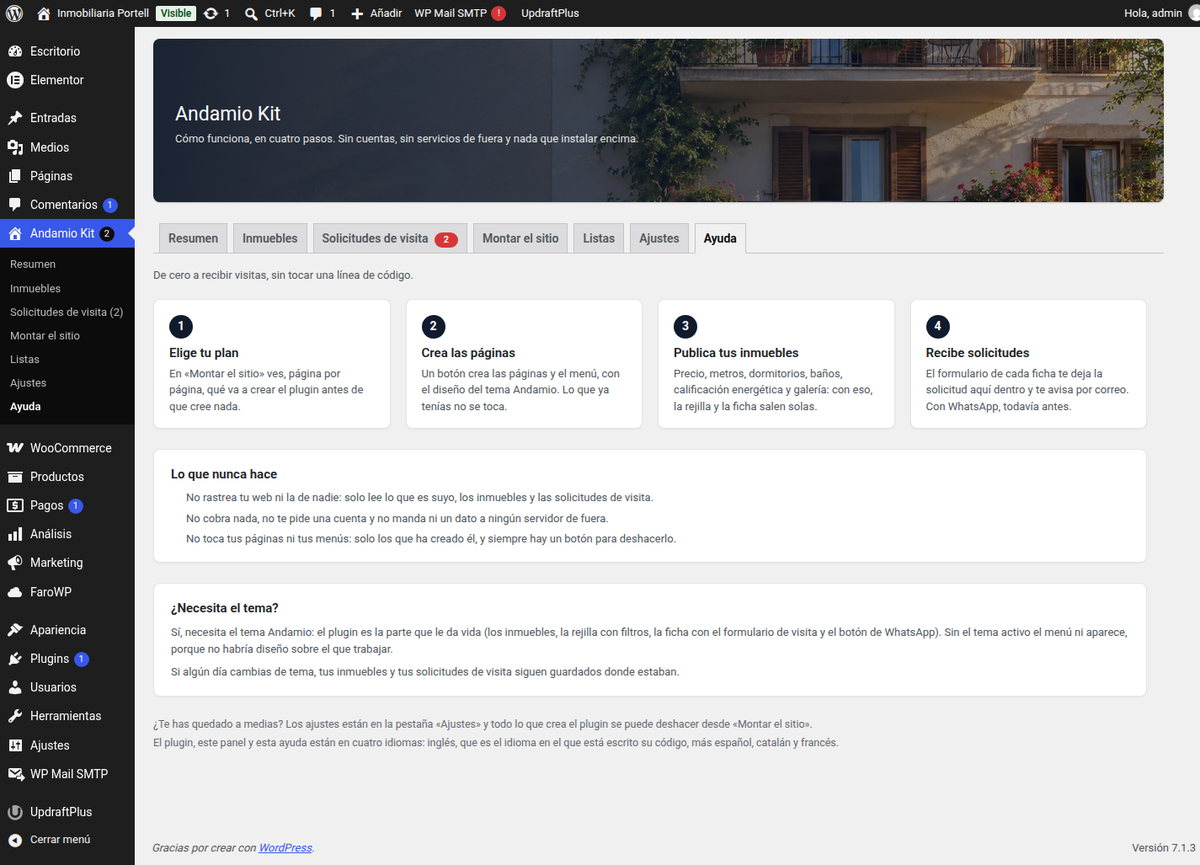
The plugin checks the theme before touching anything: activate it without Andamio and it registers not a single screen, and if you change theme later your properties and your requests stay saved where they were. The plugin says so itself on its Help screen:
2. Install and activate the plugin
Download the package from the plugin page (or from the plugins page) and in your
WordPress go to Plugins → Add new → Upload plugin. Pick the andamio-kit-0.5.2.zip
file, press Install now and then Activate.
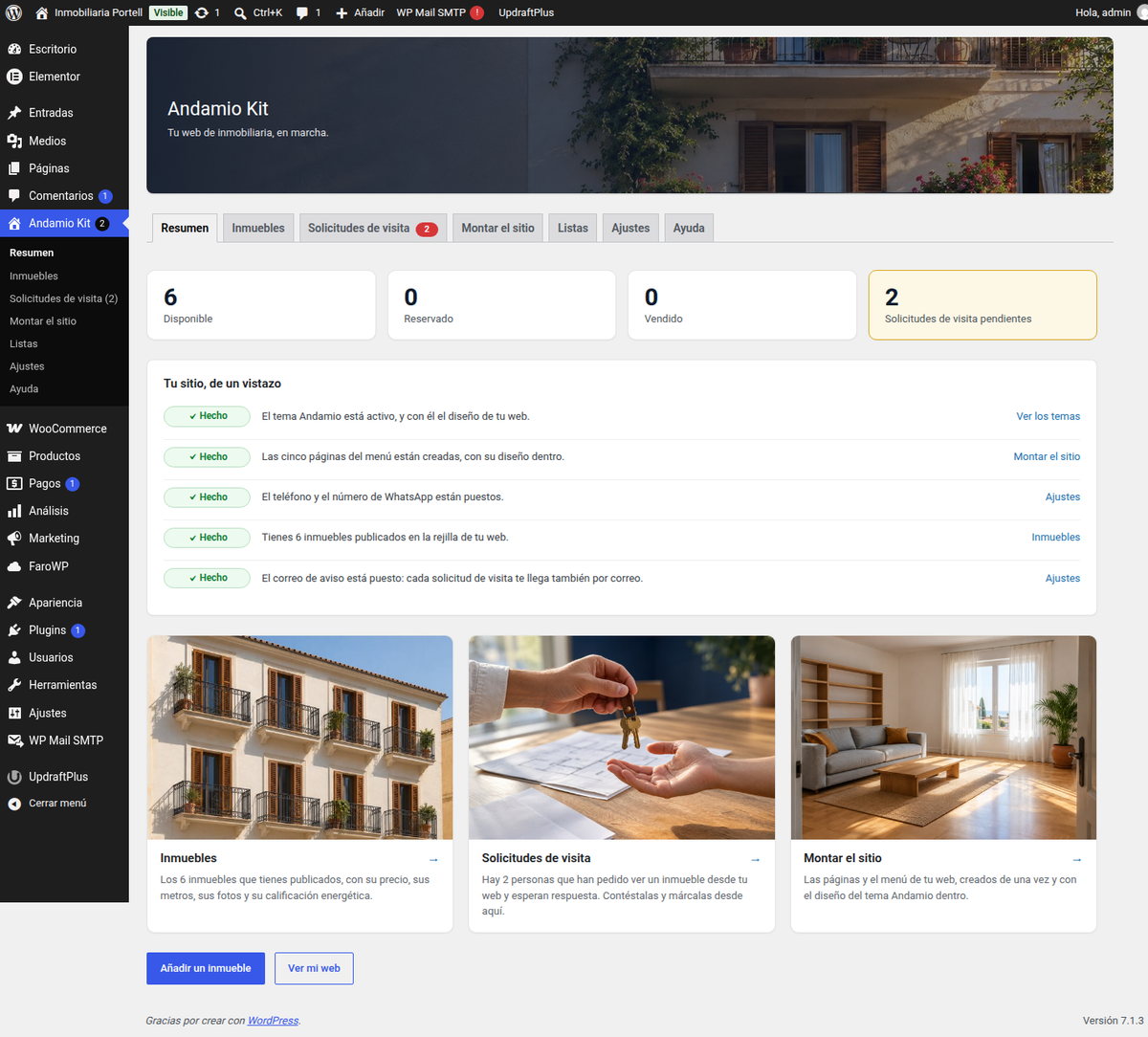
Once active, a new entry appears in the dashboard, Andamio Kit, with seven screens: Overview, Properties, Visit requests, Set up the site, Lists, Settings and Help. The whole plugin lives there, and the requests still waiting are counted on the menu bubble.
3. Set up the site: the pages and the menu
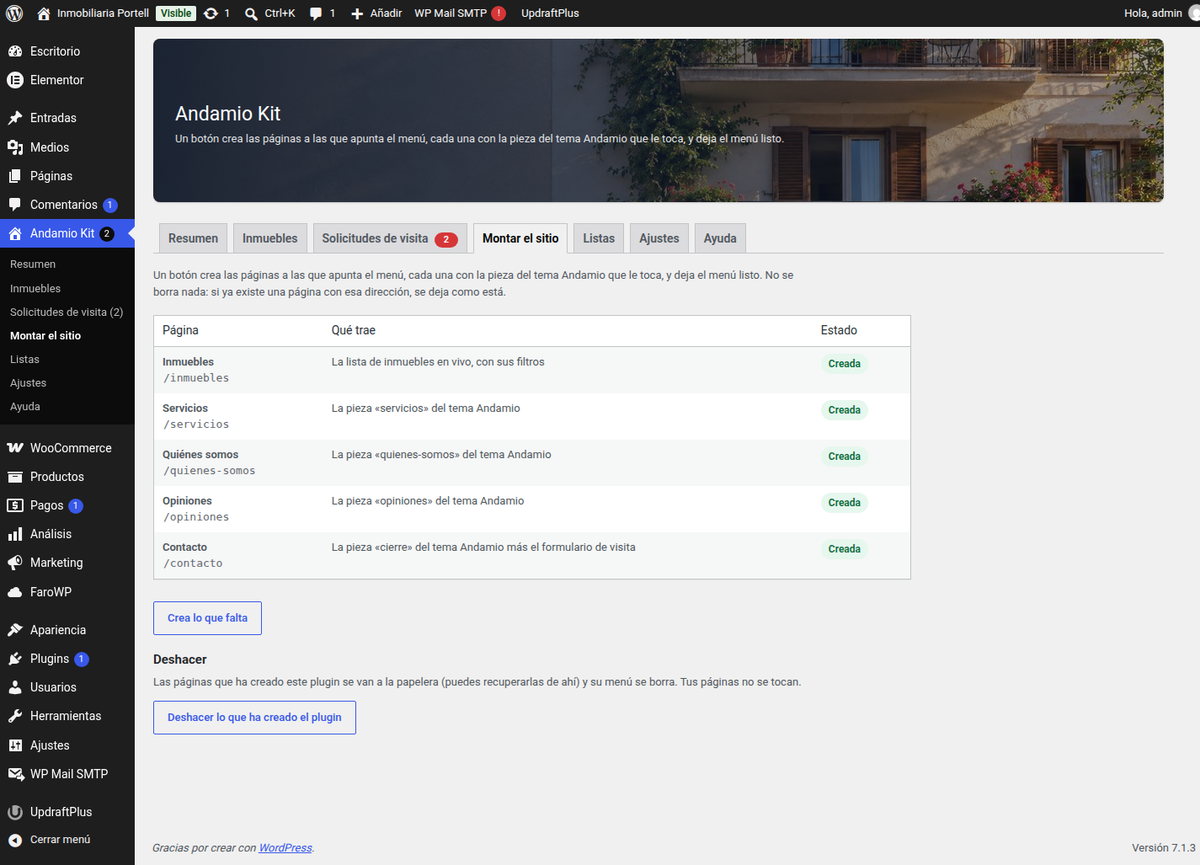
In Andamio Kit → Set up the site you see, page by page, what the plugin is going to create before it creates anything: Properties (the live list, with its filters), Services, About us, Reviews and Contact (the theme's closing piece plus the visit form), each one with its status and the Create what is missing button.
It deletes nothing of yours: if a page with that address already exists, it is left as it is, and the menu is built with its labels in the language of your site.
And if you do not like the result, at the bottom of the same screen there is Undo what the plugin has created: those pages go to the trash —where they can be recovered from— and their menu is deleted. Your pages are not touched.
4. Properties: the list in the dashboard
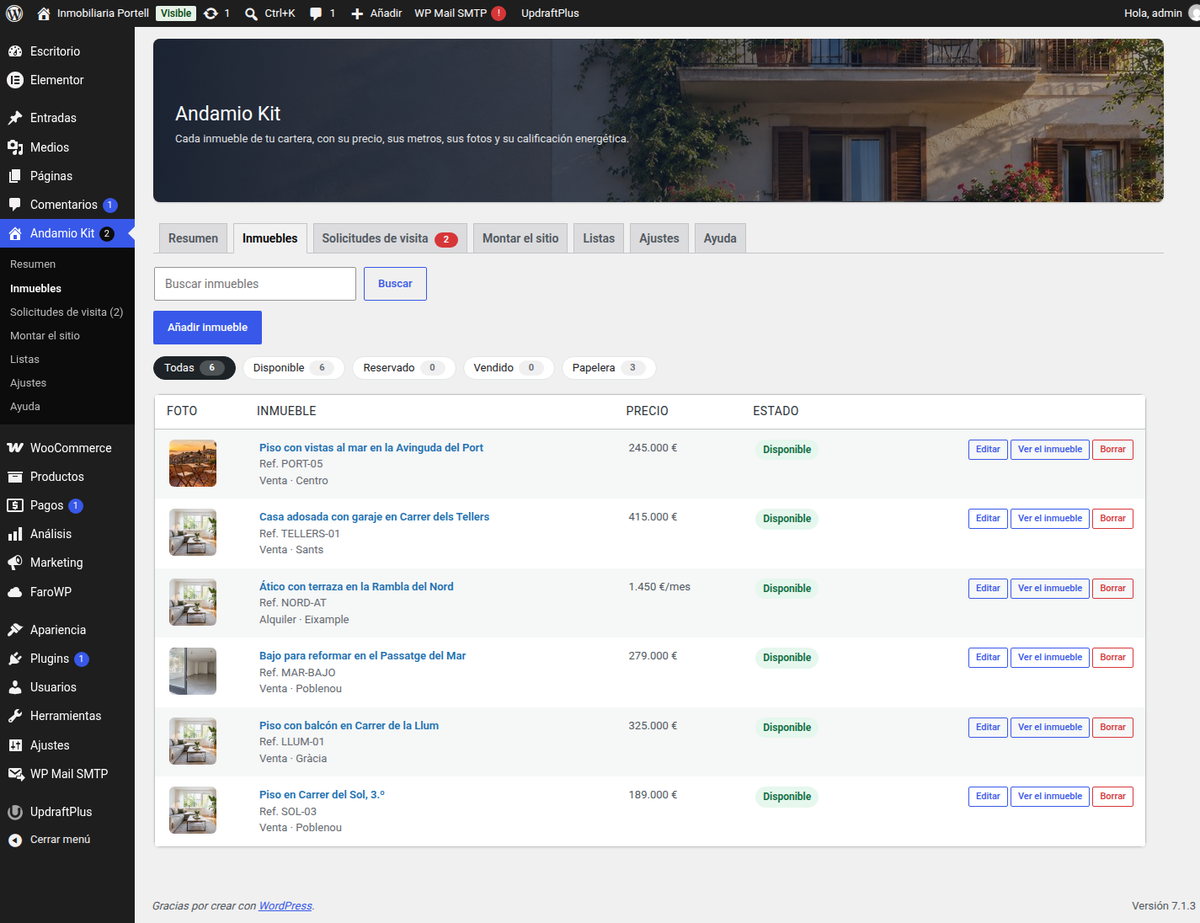
In Andamio Kit → Properties you have the whole portfolio with the photo, the price, the floor area, the status and how many photos each property has, plus the operation, area and type columns. The search box and the status filters (published, drafts, trash) are WordPress's own.
5. The property screen: everything on one page
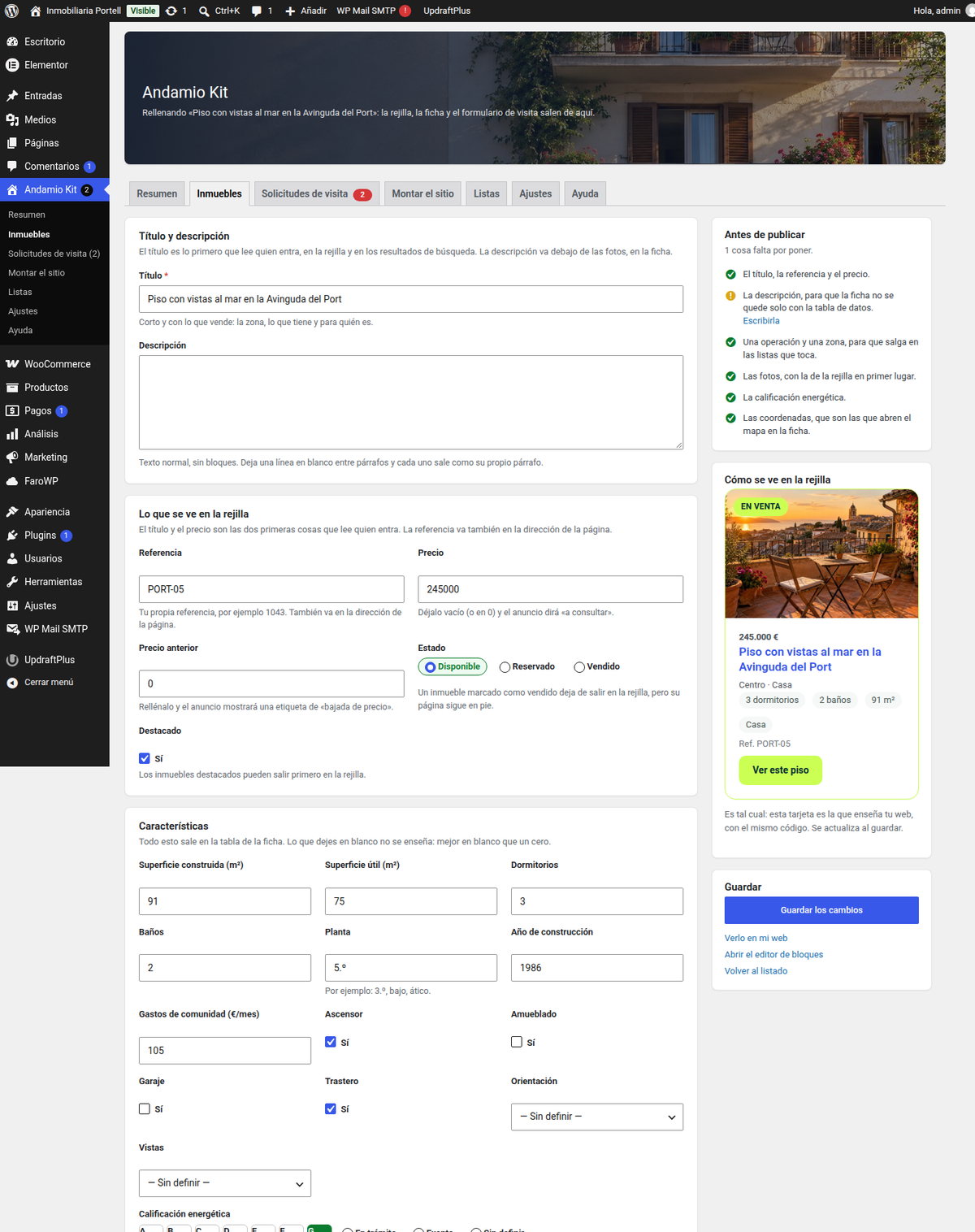
Adding a property does not send you to the block editor: a screen of its own opens with everything together —the title and the description, what the grid shows (price, floor area, bedrooms, bathrooms), the details (reference, floor, lift, community fees, year, energy rating), the photos and where it is—, with a line of help under every field.
In the right-hand column you have Before publishing: what is still missing for the property to look right in the grid (its title, the reference, the price, the energy rating, the photos, the operation and the area, the coordinates), each one with the button that takes you straight to it, and the card exactly as your site will show it. Below there is a link to open the block editor if you prefer it; saving never takes a property off your site.
6. The live grid, with its filters
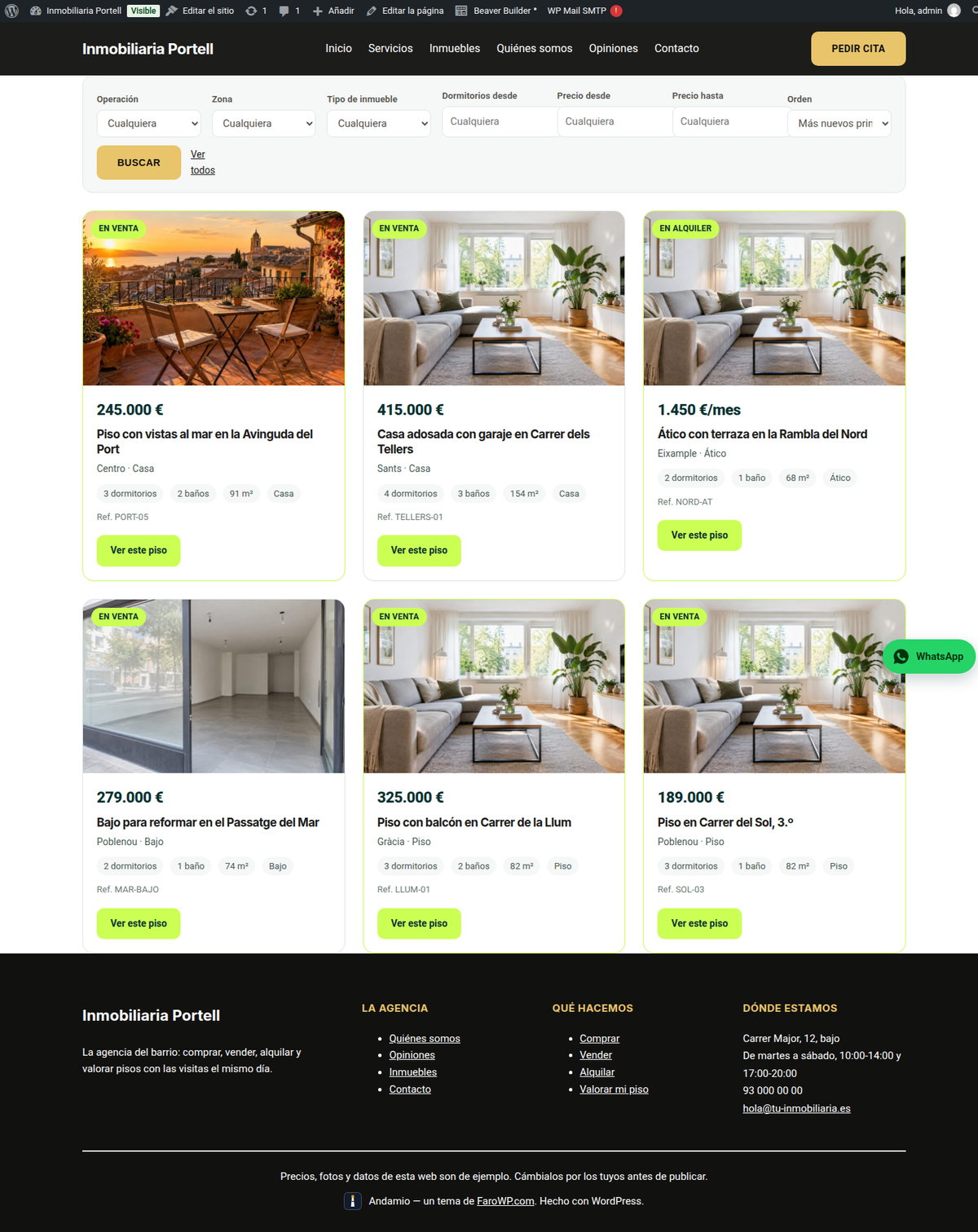
The Properties page carries the plugin's grid, which reads from your properties and not from a hand-written list. On top it has its filter bar —operation (sale, rent, transfer), area, type, bedrooms and price— and visitors can sort it. The columns are chosen in the settings.
7. The property page and the visit form
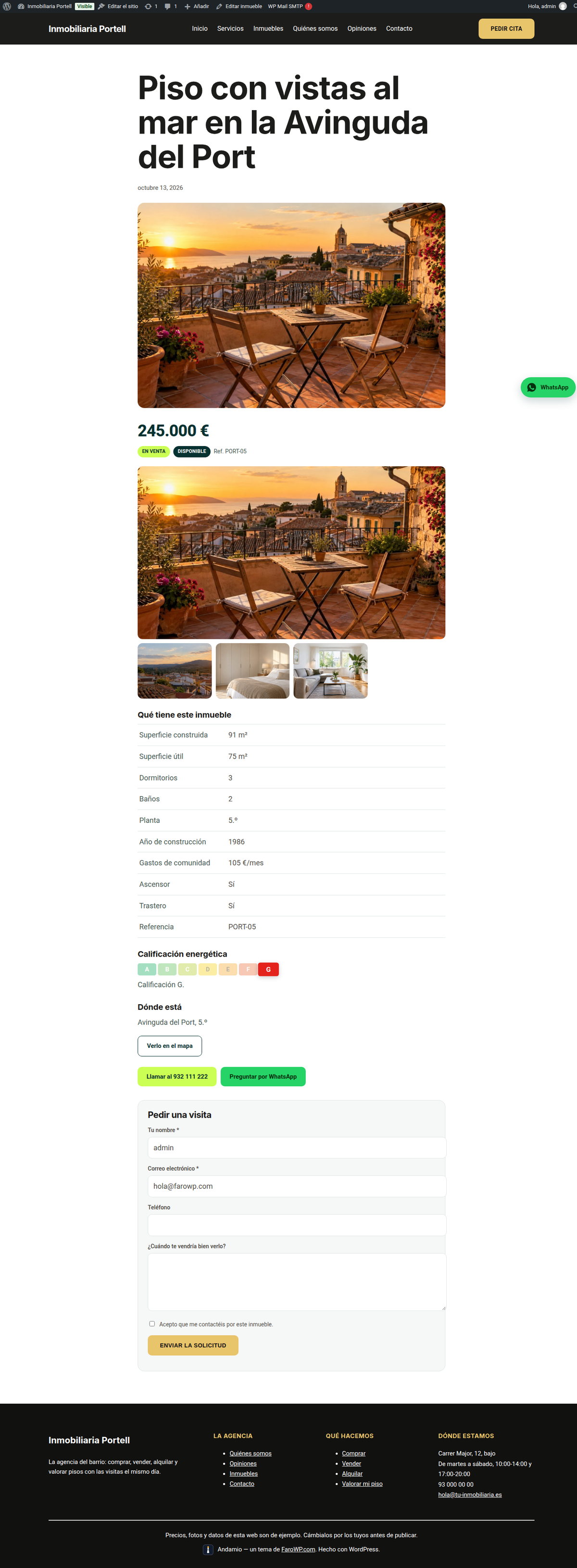
The page builds itself with what you filled in on the dashboard: the photo gallery, the data table, the energy rating letter, the map of the area —if you have it switched on in the settings— and the visit form.
The form asks for the name, the email, the phone and the message, and it is not sent without ticking the consent box and with the link to the privacy policy. Every submission is saved in your dashboard and also reaches you by email.
8. The visit requests
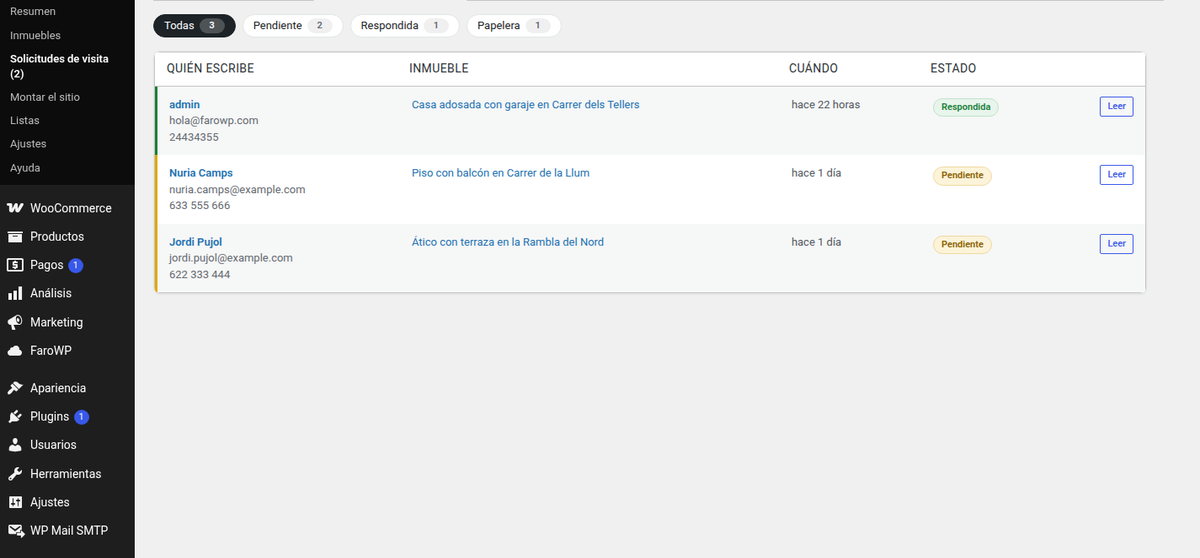
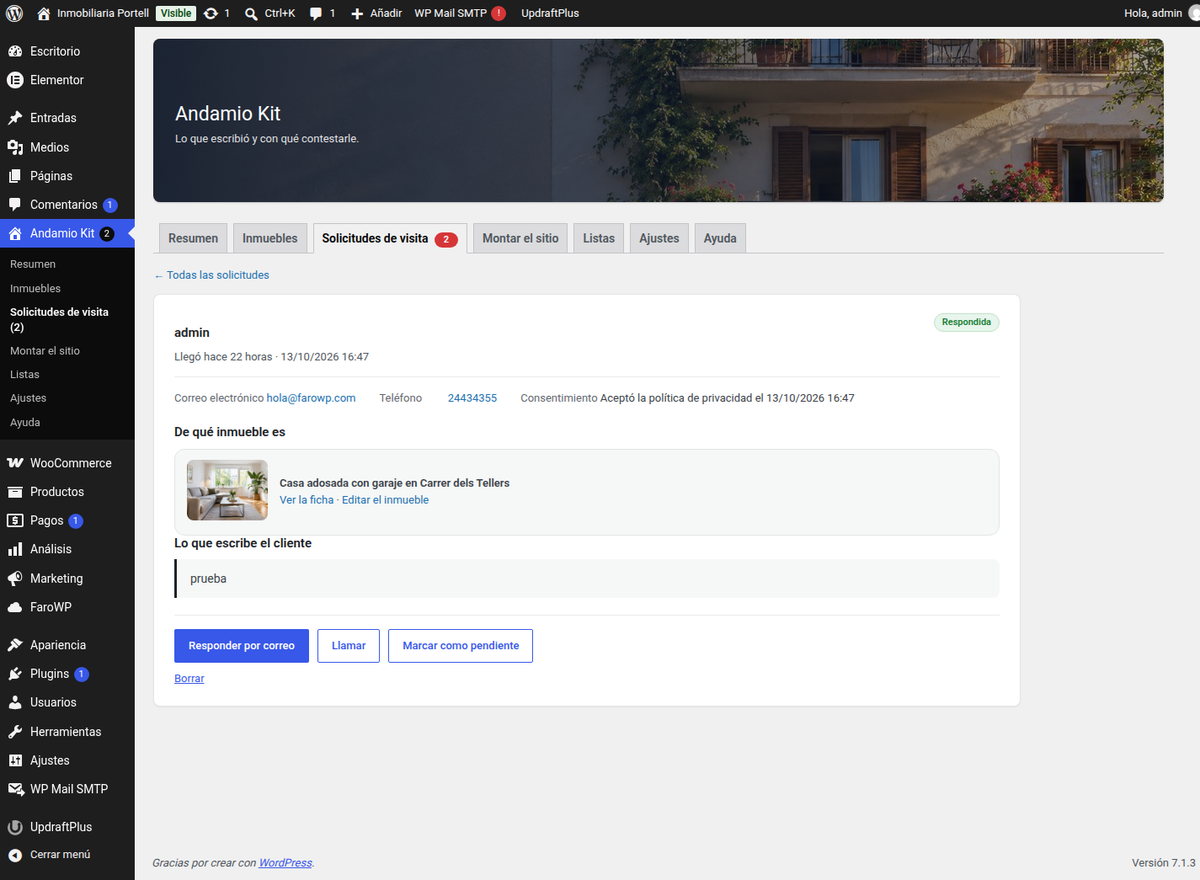
In Andamio Kit → Visit requests there is everything the form has collected, with its filter (all, pending, answered): who writes, which property it is about, when it arrived and in what state. Opening one shows the message as it was written, the property with a link to its page, the consent date, and the buttons to reply by email, call or send a WhatsApp.
One click marks it as answered and the count on the tab and in the menu updates itself; deleting sends it to the trash, so nothing is lost by a slip.
9. The settings, the lists and the help
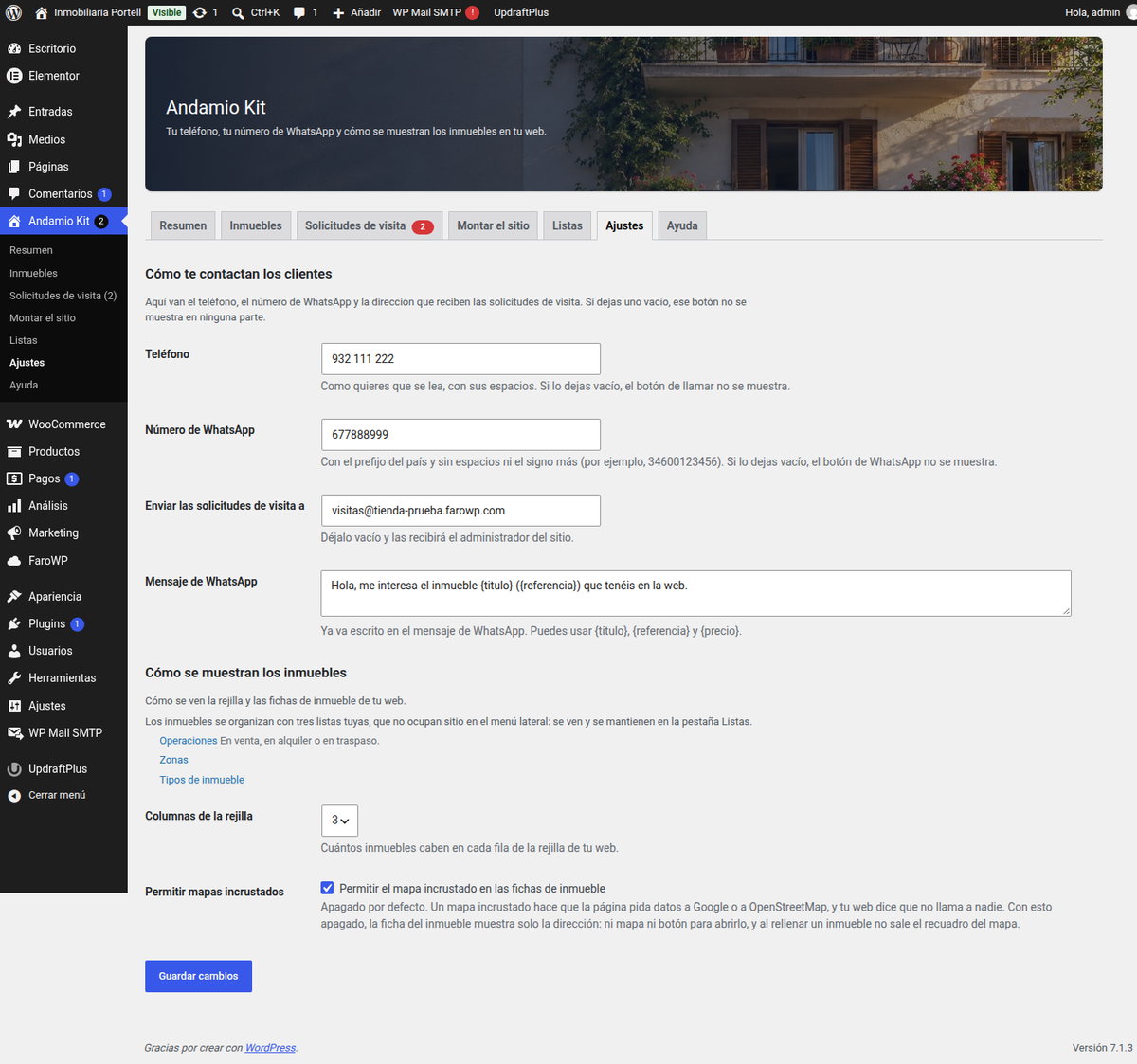
In Andamio Kit → Settings you have how clients reach you (the phone, WhatsApp, where the requests go and the notification email) and how the properties are shown (the columns of the grid and whether the property page shows the map). The WhatsApp button only appears when the phone can be resolved to a number with a country prefix.
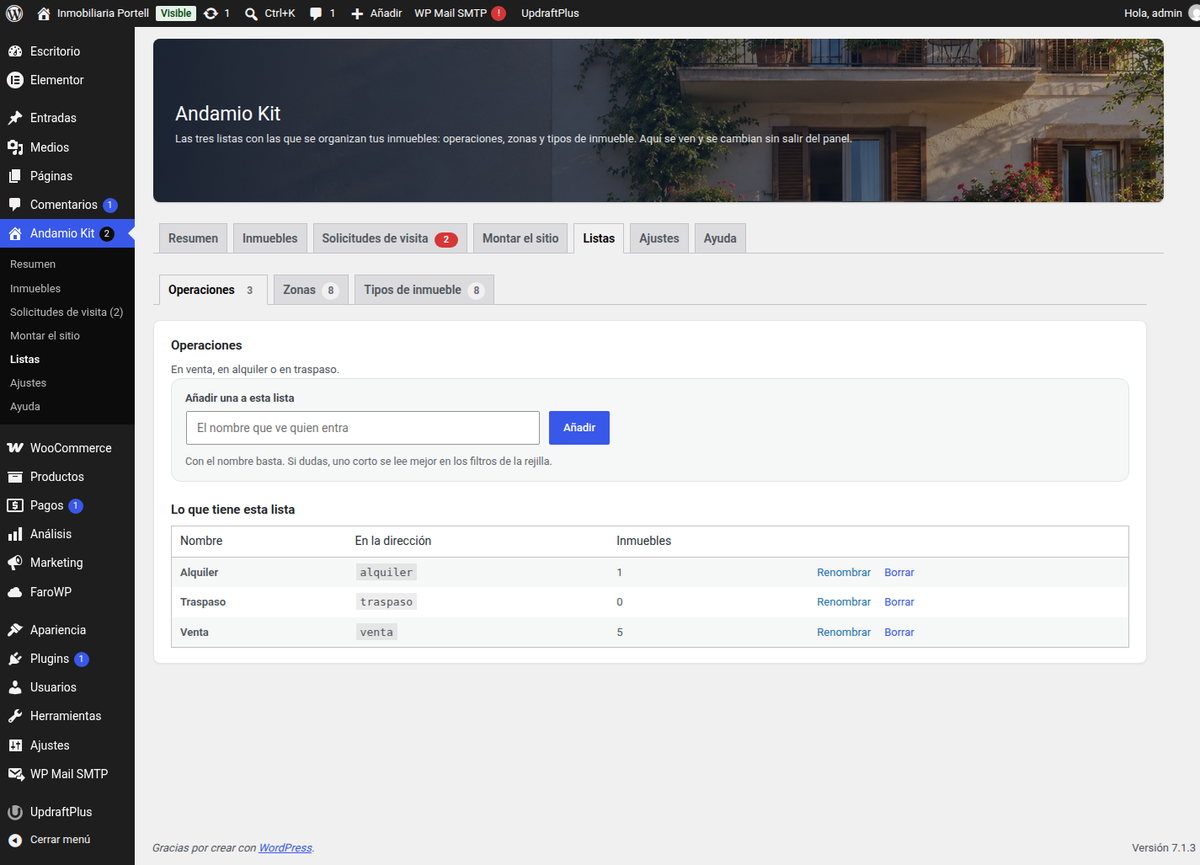
The three lists that organise the portfolio —operation, area and property type— are handled in Lists: add, rename and delete, each one with the properties using it. And if you get lost, Help sums up the four steps and says what the plugin never does.